How to buy FreeGF.ai credits with crypto
Crypto is digital money. FreeGF.ai takes it in three ways. You do not need to already own crypto. This page tells you which button to tap, how to get the right coin on your phone, and how to send it.
The three ways to pay
- USDT (15% OFF) pays USDT directly to FreeGF.ai. This is the simplest first payment. Choose Tron (TRC20) unless you already hold USDT on another network.
- Buy with Bitcoin (15% OFF) pays Bitcoin directly to FreeGF.ai. This button is on packages above $10.
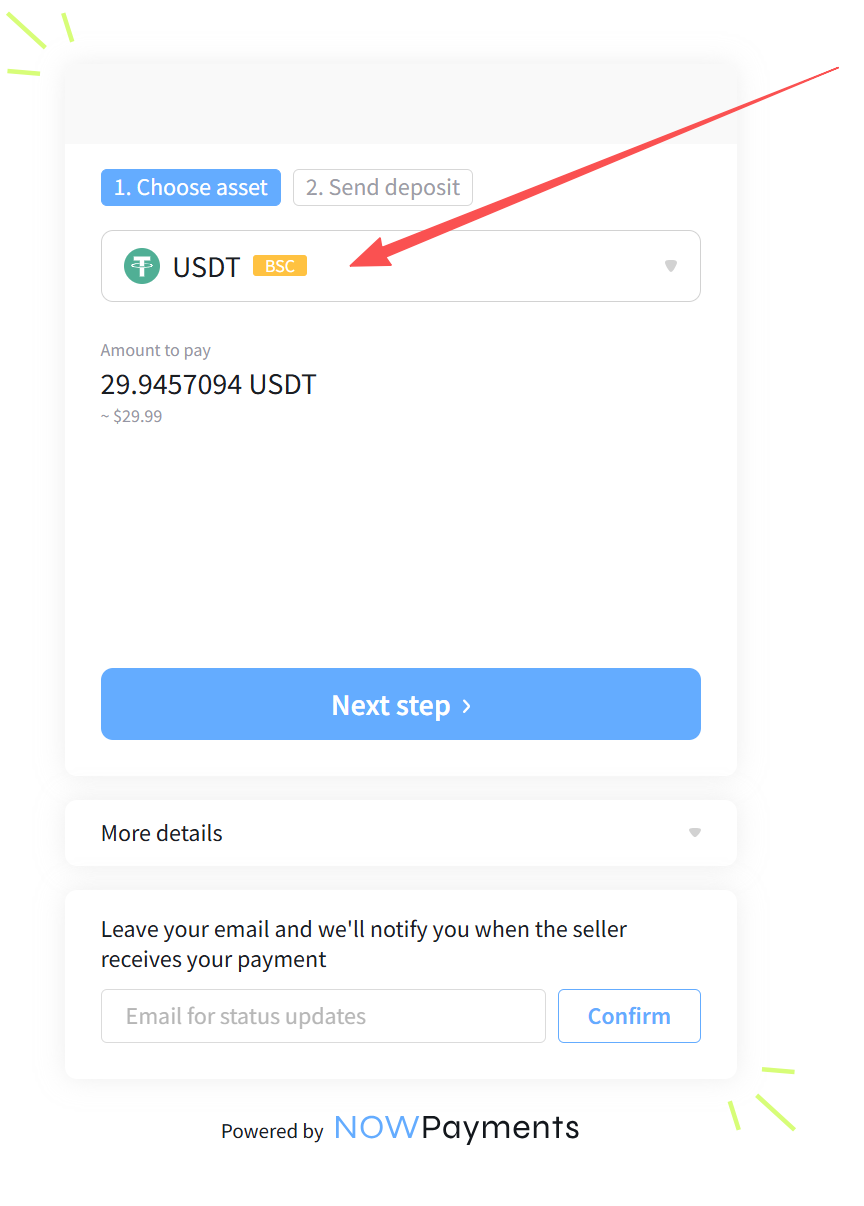
- Crypto (15% OFF) opens a NOWPayments checkout. You can pay with any coin that page lists. The coin and the network on that page have to match what you send.
FreeGF.ai will never ask for your wallet password or your secret recovery words.
Pay with USDT on FreeGF.ai
Use this if you are new to crypto. USDT is a coin that stays near one US dollar, so the amount you send is easy to check.
- Sign in to FreeGF.ai.
- Open the credits page and choose a package.
- Tap USDT (15% OFF). A window titled "USDT Payment · 15% off" opens on FreeGF.ai.
- Choose a network. Pick Tron (TRC20) if you are buying USDT for this payment. It is marked lowest fee. TON, Solana, and Ethereum (ERC20) also work. Ethereum costs more to send. The network you choose here must be the network your USDT is on.
- Tap Continue with USDT.
- Copy the USDT amount and the address. The amount is not a round dollar figure on purpose. That extra fraction of a cent lets FreeGF match the payment to your account. Send that exact amount, not the package price.
- Send it from your wallet before the timer on the window runs out. When the window says payment confirmed, the credits are in your FreeGF.ai account.
Pay with Bitcoin on FreeGF.ai
On a package above $10, tap Buy with Bitcoin (15% OFF). A Bitcoin Payment window opens on FreeGF.ai.
- Check the dollar price and the BTC amount, then tap Continue with Bitcoin.
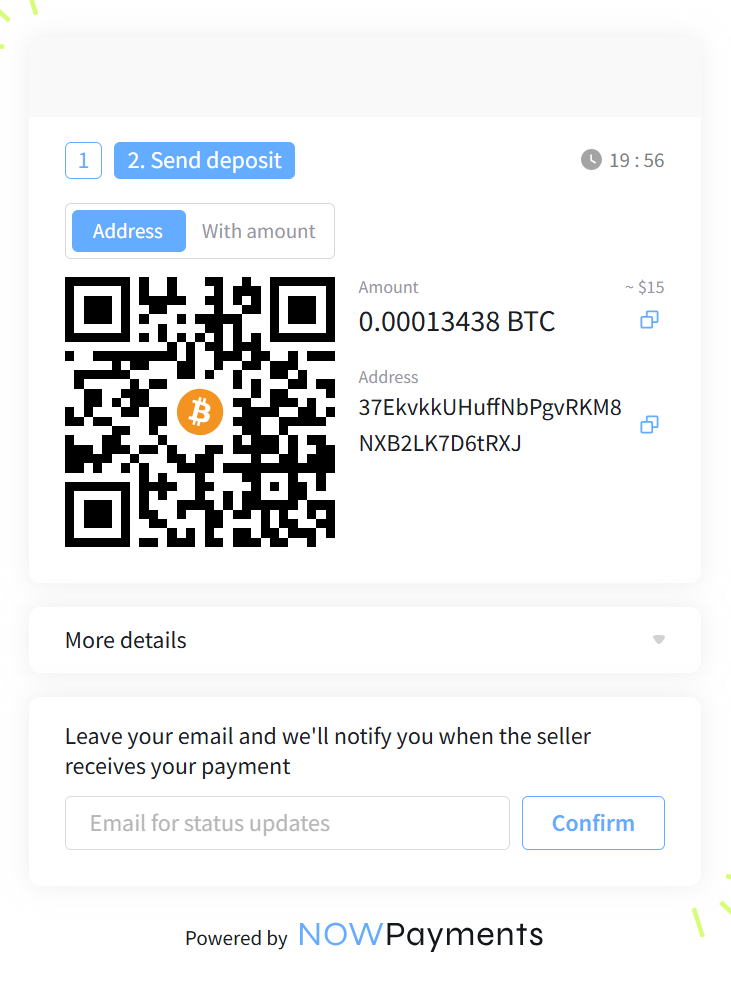
- Copy the Bitcoin address and the BTC amount from that window. You can also show the QR code and scan it from your wallet.
- Send that BTC amount, or a little more. Send only Bitcoin. A different coin will not be counted.
- Credits are added after the Bitcoin payment confirms. If they are not in your account within an hour of sending, email help@freegf.ai.
Pay with another coin through NOWPayments
Tap Crypto (15% OFF) on the package. A NOWPayments page opens. That page is the list of coins FreeGF.ai can take for this button. Pick one coin from that list. If you do not already hold it, buy that coin first, then come back to this page.
- Tap the coin at the top of the NOWPayments page.
- Choose the coin you are sending, and the network it is on. Both have to be right. The page often starts on USDT. Change it if that is not what you are sending.
- Copy the amount and the address with the copy buttons. Do not type them by hand, and do not copy them from a picture.
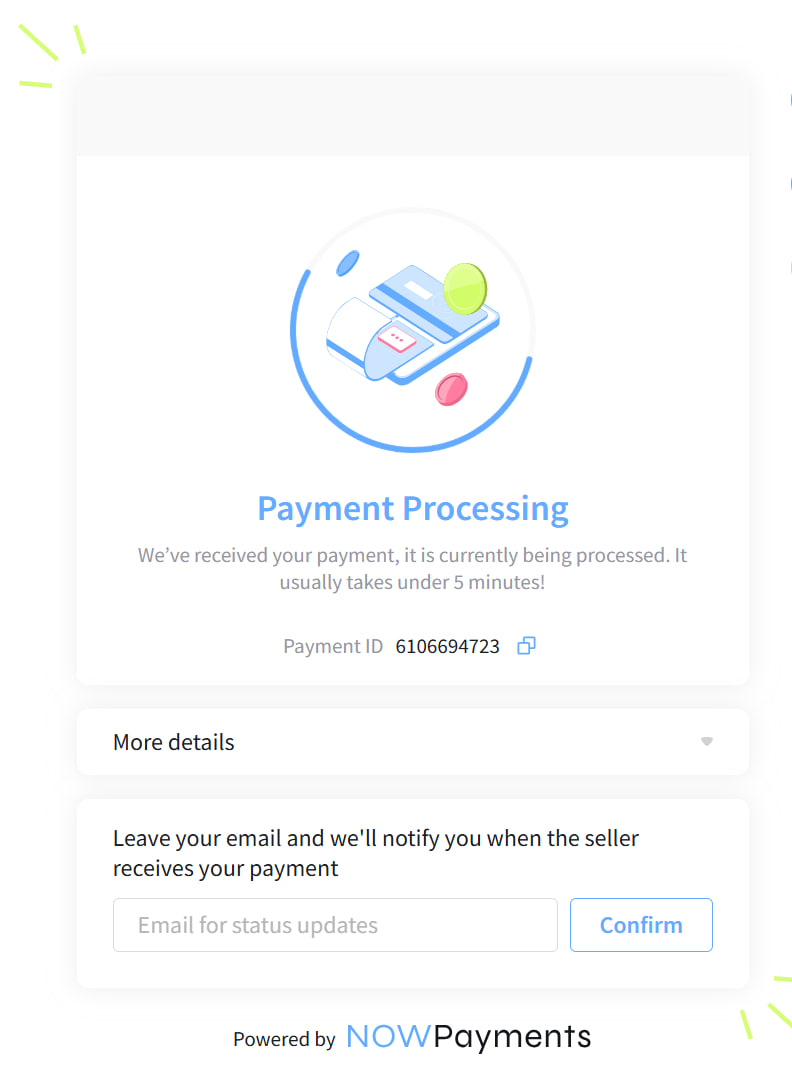
- Send from your wallet, then return to the NOWPayments page. When it says the payment was received, your FreeGF.ai credits are added, usually within a few minutes.
Pictures on this guide are examples. The address and amount in them are from old orders. Copy the address and amount from the payment window open on your own screen.
If you do not have the coin yet
Install Trust Wallet, a free app, and buy the coin that matches the button you will tap. Buy a little more than the package price so you can cover the small network fee.
- For the USDT button, buy USDT. If the app asks for a network, choose Tron (TRC20), then choose Tron (TRC20) again in the FreeGF window.
- For the Bitcoin button, buy Bitcoin, then use Buy with Bitcoin on a package above $10.
- For the Crypto button, open NOWPayments first, see which coins are listed, and buy one of those.
On a computer, you can use the Chrome extension instead. The phone steps are easier the first time.
iPhone
- Open the App Store link, or search for "Trust: Crypto & Bitcoin Wallet".
- Install the app from DApps Platform Software Services Ltd. Skip any app with a similar name from a different developer.
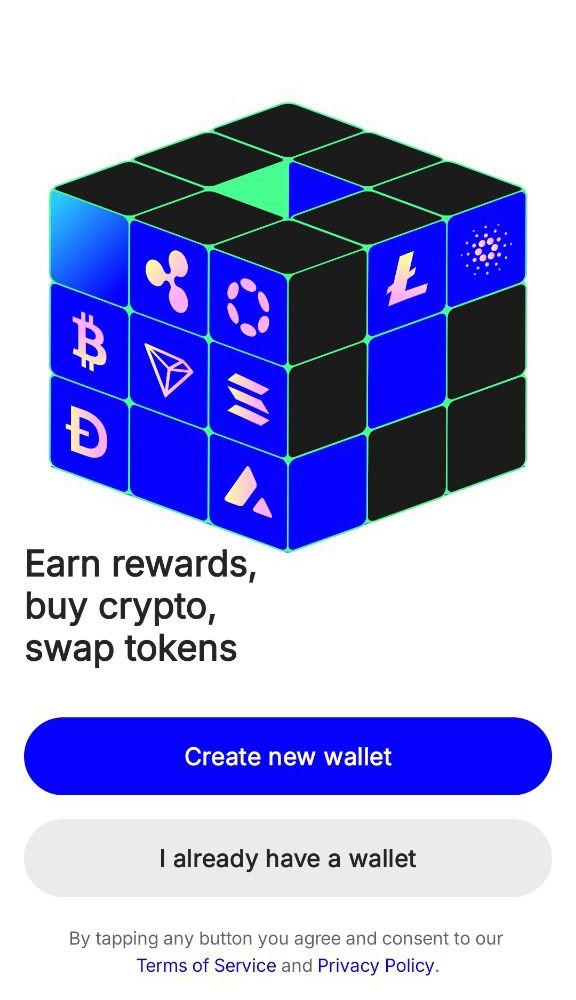
- Open it and create a wallet, as shown below.
Android
- Open the Google Play link, or search for "Trust: Crypto & Bitcoin Wallet".
- Install the app from DApps Platform, Inc.. Skip any app with a similar name from a different developer.
- Open it and create a wallet. In the buy screen you can pay with a card, bank transfer, or Google Pay.
Create the wallet and buy
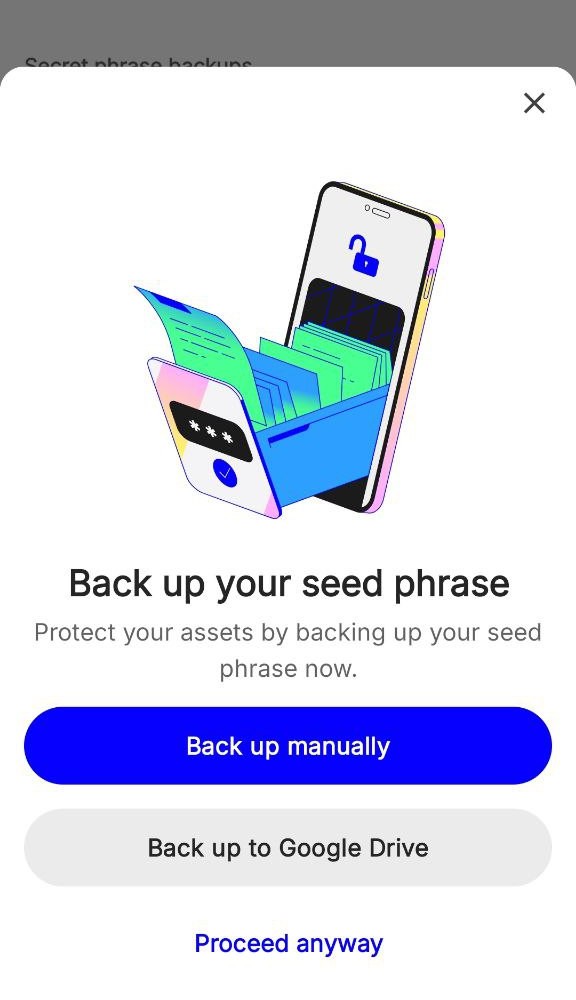
- Tap Create new wallet. The app shows a secret recovery phrase, a list of words that can restore the wallet. Write it on paper. Do not screenshot it, and do not send it to anyone, including FreeGF support.
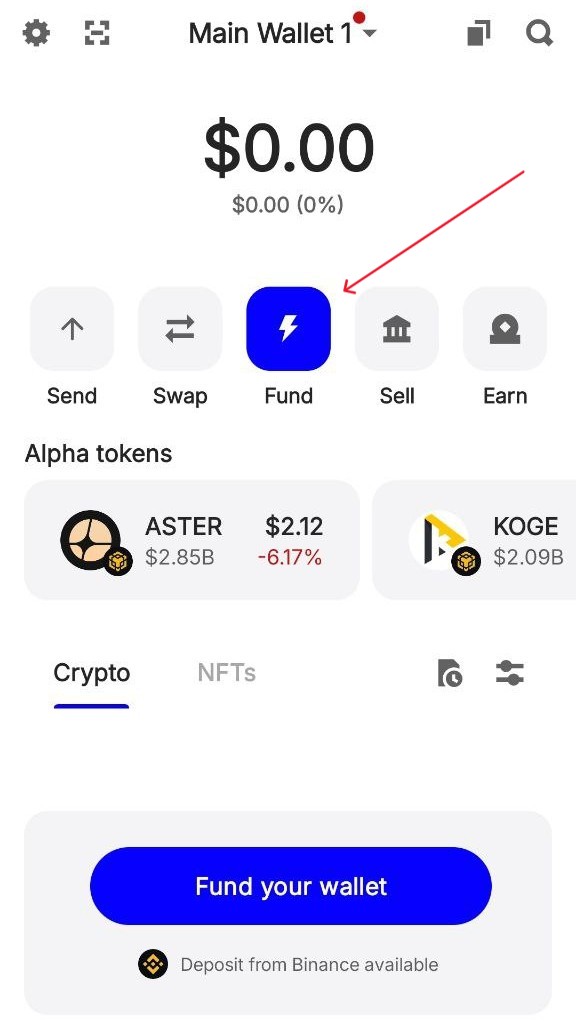
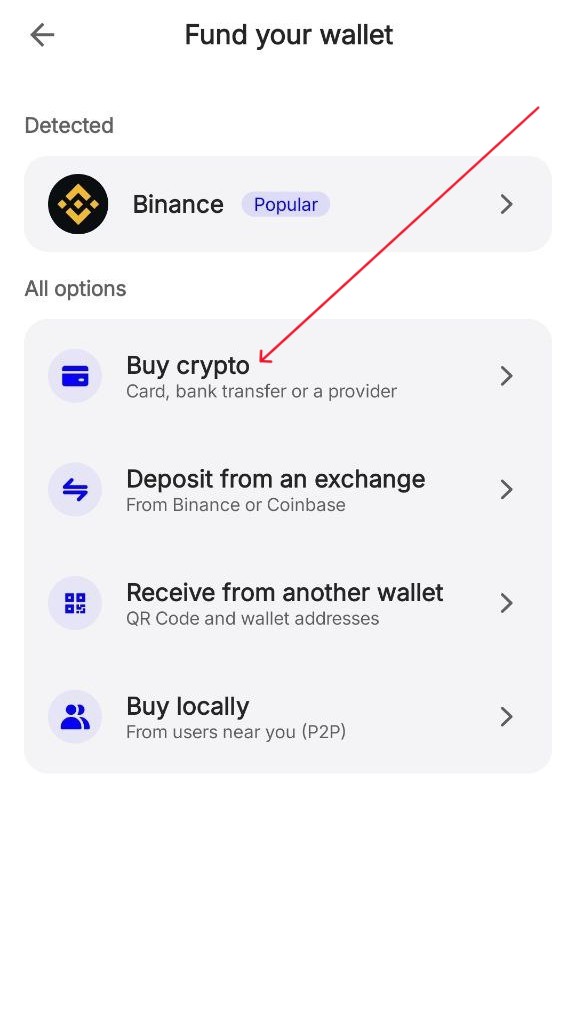
- Tap Fund, the blue button with a lightning bolt, then tap Buy crypto.
- Buy USDT on Tron, Bitcoin, or a coin listed on the NOWPayments page, depending on which FreeGF button you are using. The seller may ask for a photo of your ID. That check is theirs, not FreeGF.ai's.
- Wait until the coin shows in the wallet before you send it.
Send it to FreeGF.ai
- Go back to the FreeGF payment window and copy the address and amount.
- In Trust Wallet, open the same coin and network, then tap Send.
- Paste the address and the amount. For USDT, the amount must match the FreeGF window exactly. For Bitcoin, send the amount shown or a little more. Trust Wallet adds its own network fee on top, so do not subtract a fee from the amount you paste.
- Confirm the send, then watch the FreeGF window until it confirms.
If you use Binance or another exchange
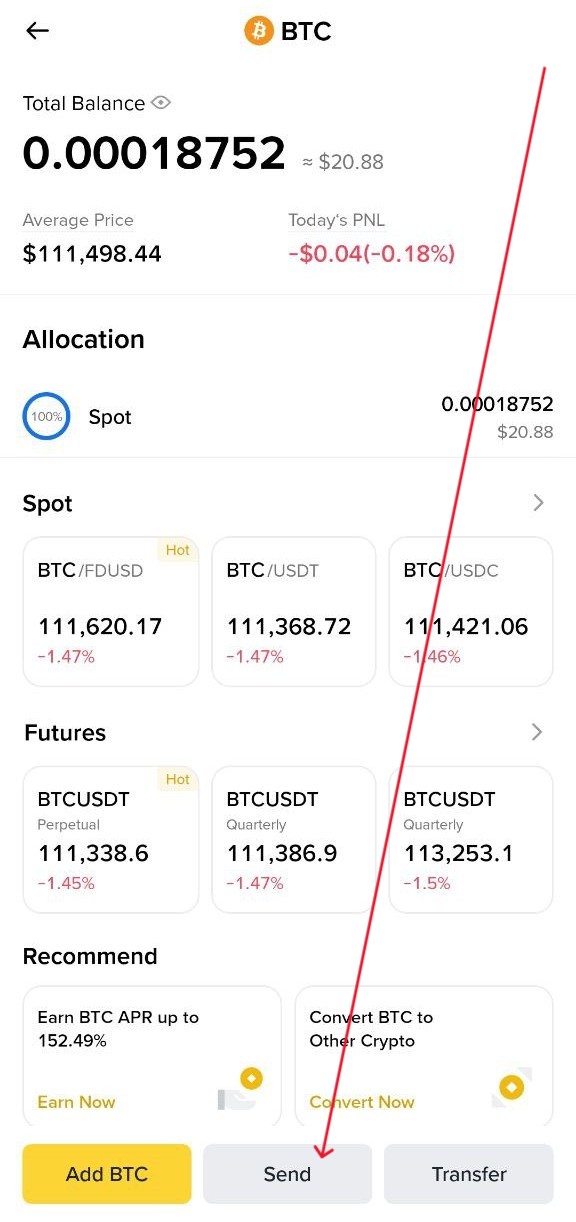
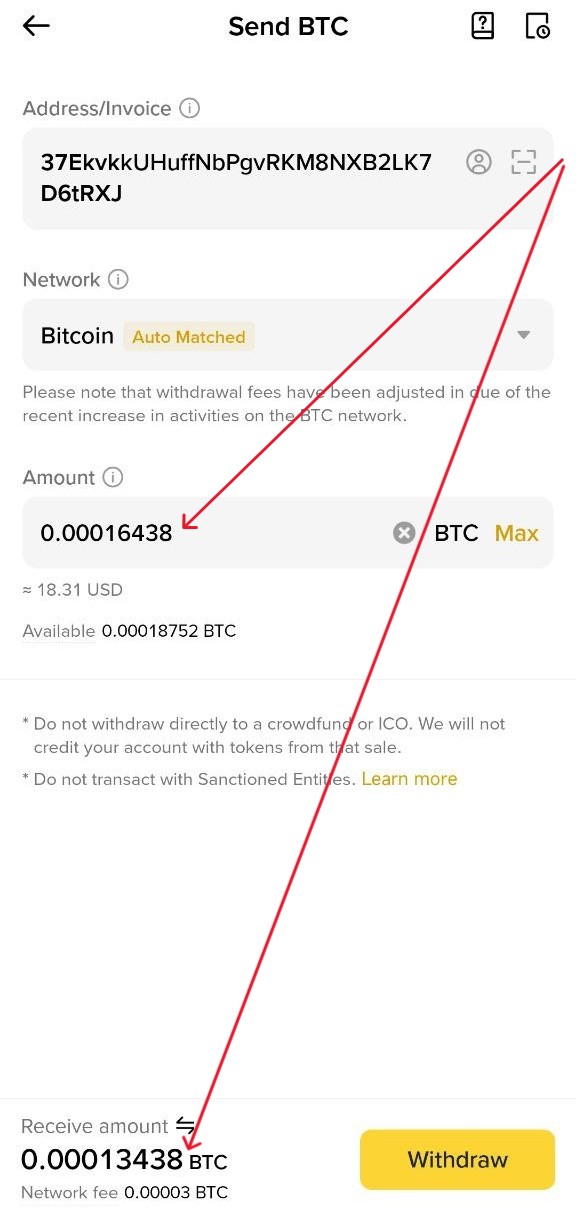
Skip this if you used Trust Wallet. An exchange often takes the network fee out of the amount you withdraw. Before you confirm, look at the receive amount. For USDT, that number must equal the exact amount in the FreeGF window. For Bitcoin, it must be the BTC amount shown, or a little more. If it is short, increase the withdrawal until it matches. Withdraw on the same network you selected on FreeGF.ai.
This video shows how to install Binance and buy crypto. The pictures below use Bitcoin so you can see where the fee is subtracted. The address in them is an example. Use the address from your own FreeGF Bitcoin window, or from the NOWPayments page if you tapped Crypto.
If the credits do not show up
- The usual problem is the wrong network. USDT on Tron is not the same payment as USDT on Ethereum, Solana, or TON. Bitcoin is its own network. On the Crypto button, the coin and the network on the NOWPayments page both have to match what you sent.
- For USDT, the amount that arrives has to be the exact figure in the FreeGF window, including the extra fraction of a cent. A rounded dollar amount will not match your account.
- Email help@freegf.ai with screenshots of the FreeGF payment window and your wallet send screen, the amount, the address, the network you selected, and the transaction ID from the wallet. That ID is sometimes labeled Tx hash.